> ## Documentation Index
> Fetch the complete documentation index at: https://docs.livepeer.org/llms.txt
> Use this file to discover all available pages before exploring further.
# Livestream via OBS
> Learn how to stream into Livepeer Studio with OBS
The purpose of this guide is to allow you to get a more in-depth look at setting
up a livestream using Livepeer Studio with OBS.
## Introduction
[OBS](https://obsproject.com/) is an application that many creators use to
stream into Livepeer because it is easy to use, open source, and offers a high
degree of customization.
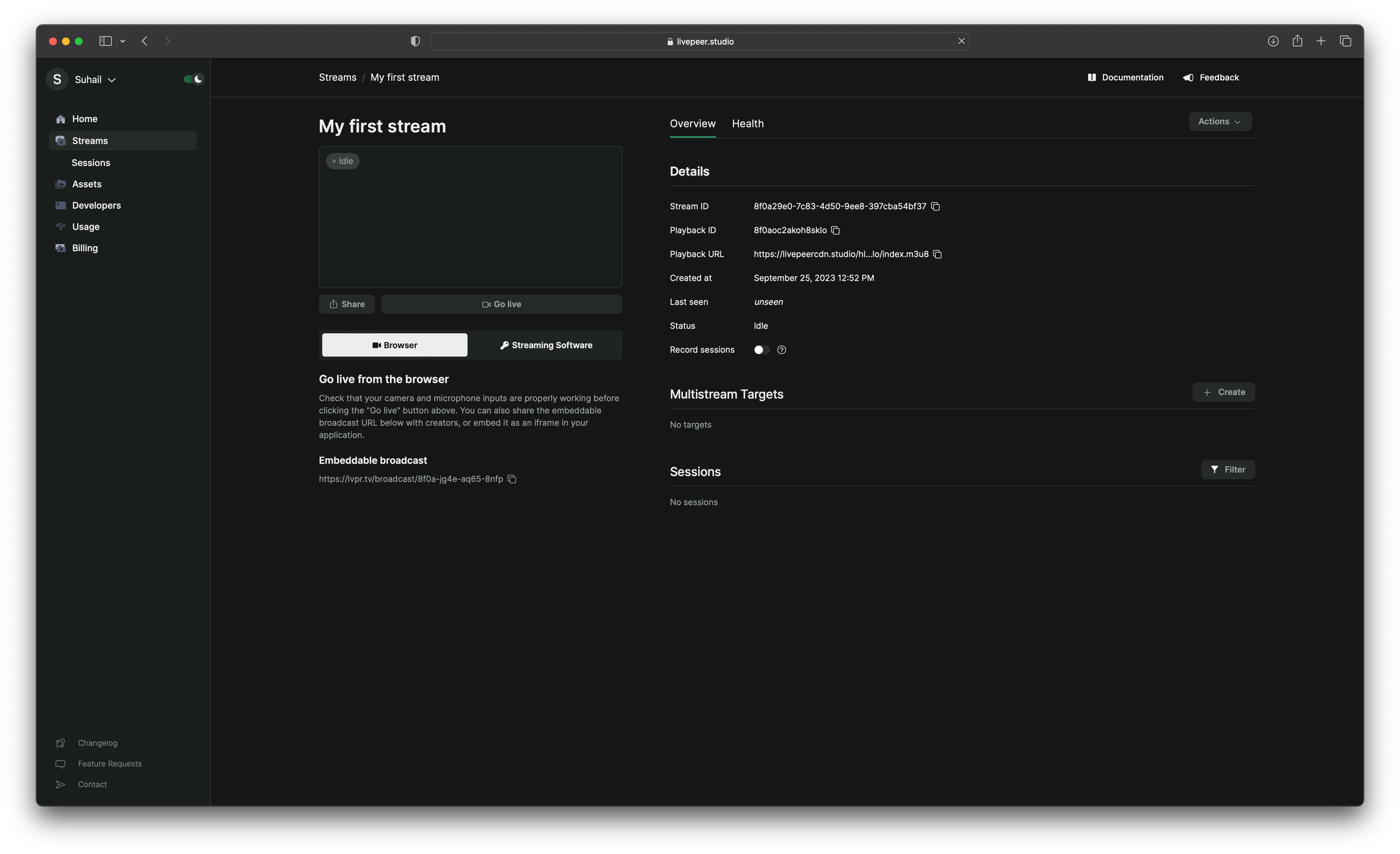
## Get a unique stream key
Follow our previous guide on
[creating a stream](/developers/guides/create-livestream) to get a stream key to
provide to the creator on your platform. They will need to use this for their
OBS configuration.
## Open OBS and create source
The creator will then need to:
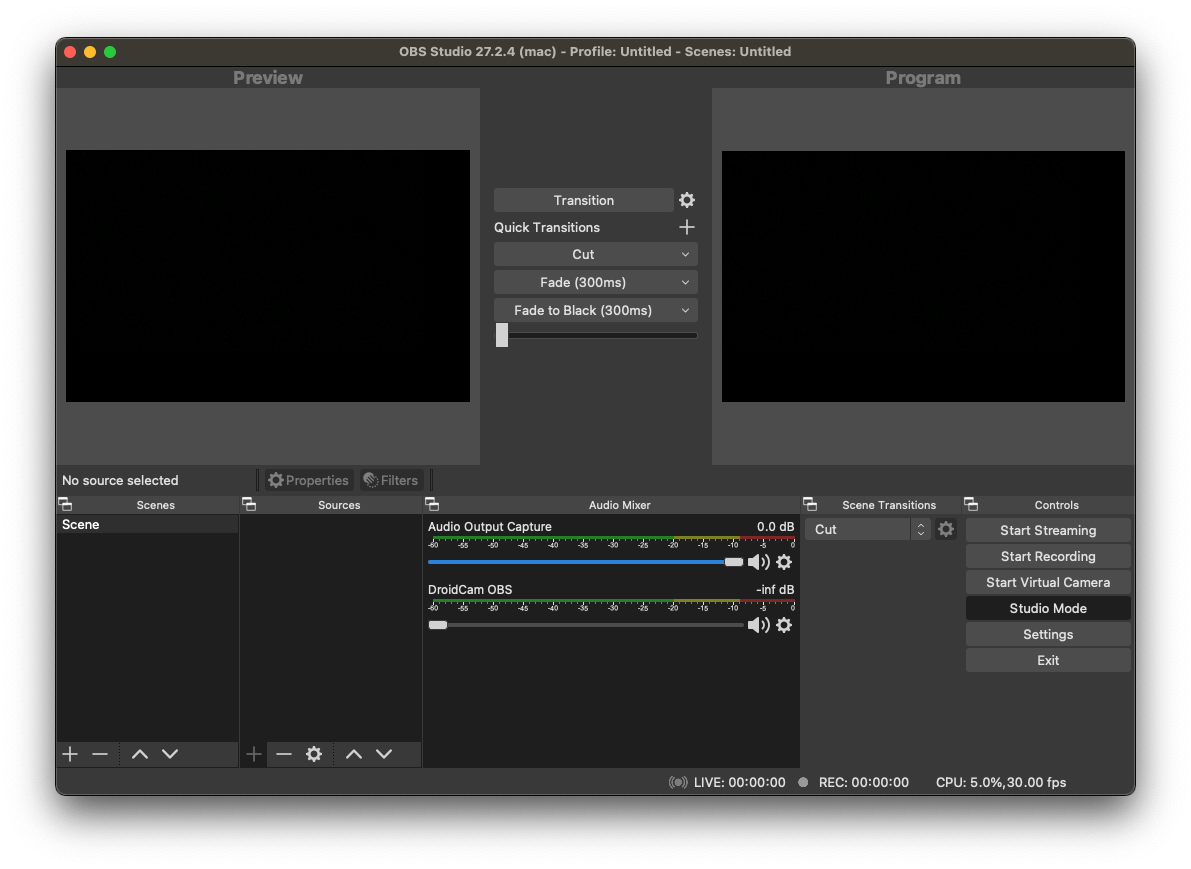
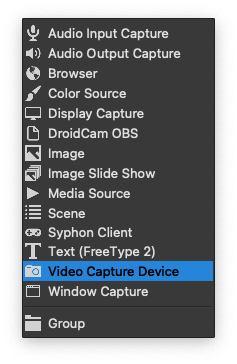
1. Click the **+ icon** under sources and select **Video Capture Device** if
you’d like to stream using a camera or webcam. If you’d like to stream a
browser window, select **Window Capture**.
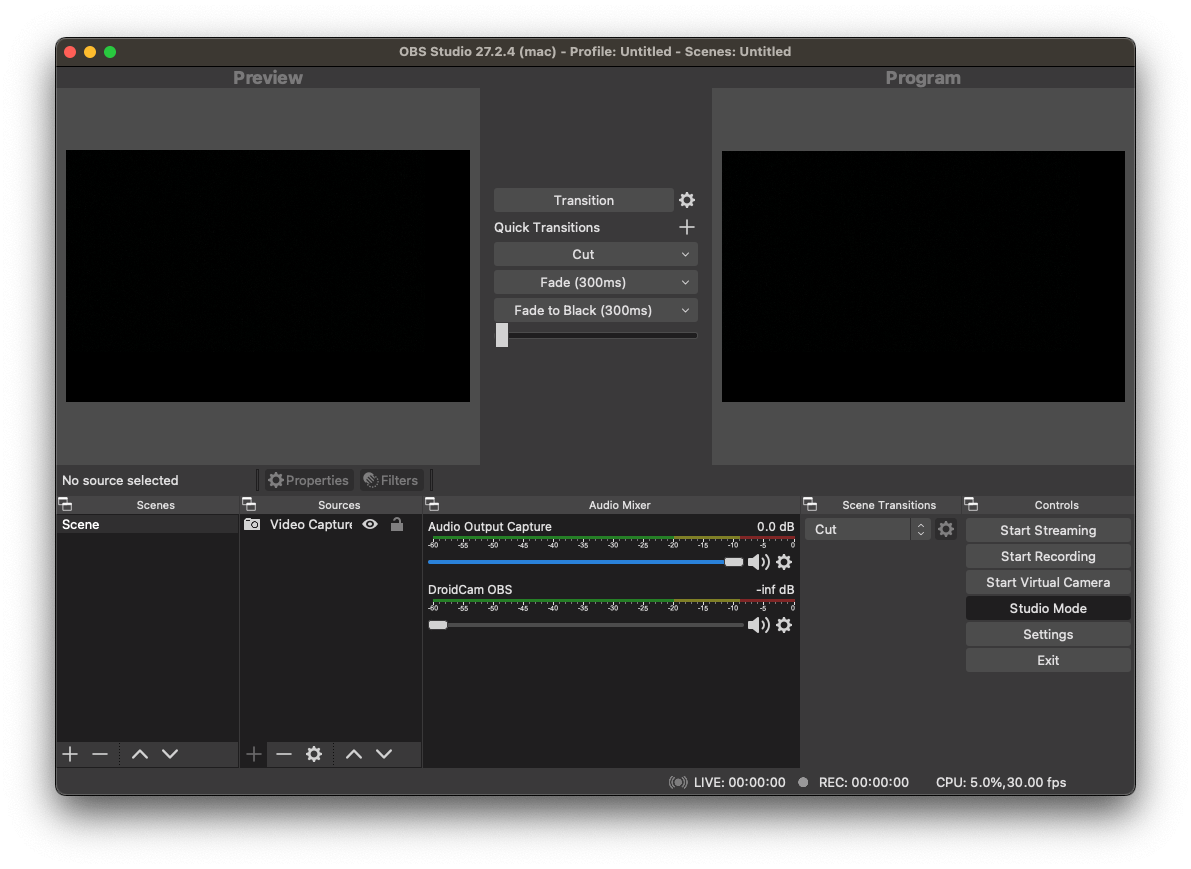
2. Give the device a name:
 ## Update stream settings
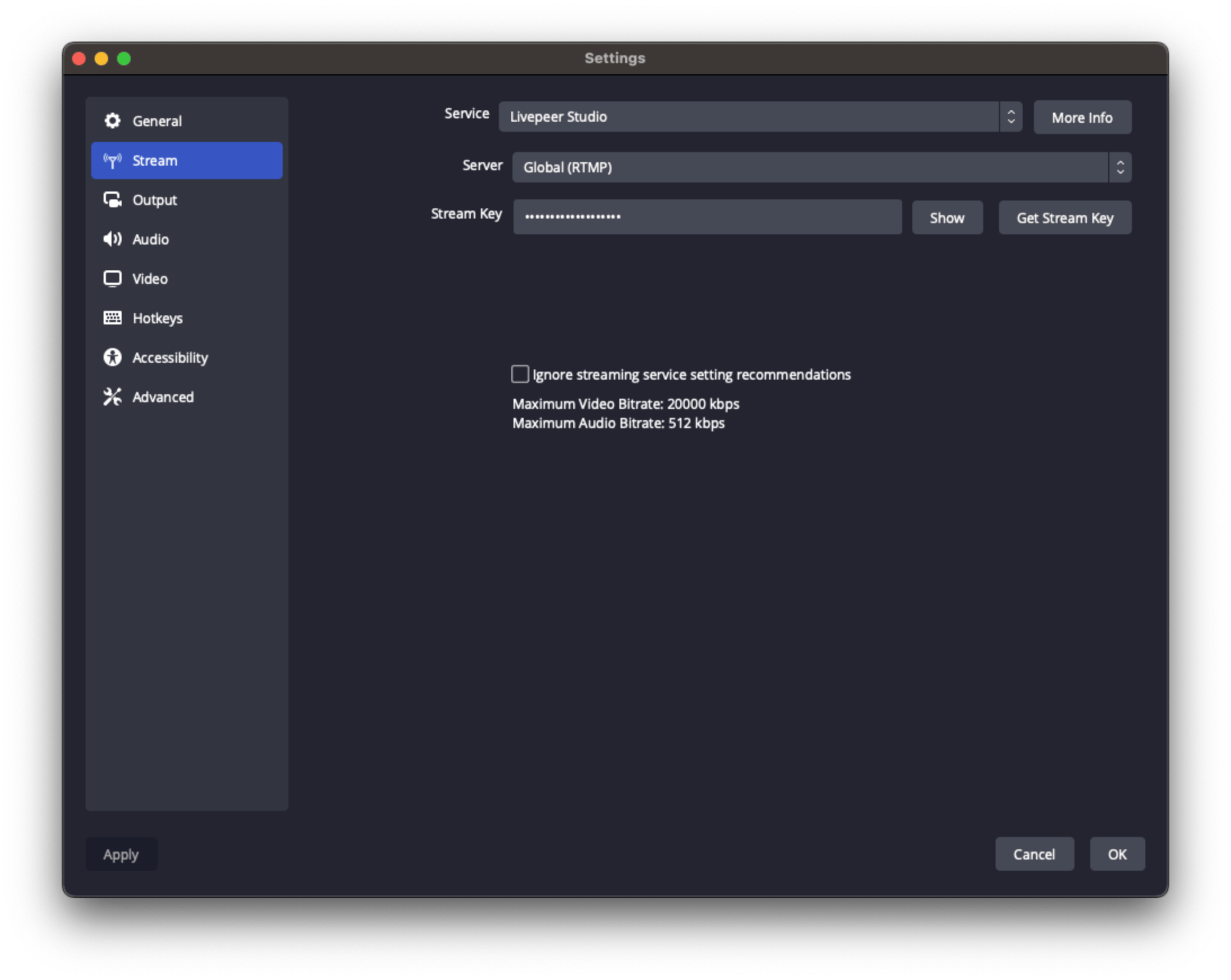
1. Select **Stream** settings.
2. Select **Show All...** and then **Livepeer Studio** for the service.
3. Keep the **Default** Server and paste the **Stream Key** provided by Livepeer
Studio into the OBS **“Stream Key”** fields. It is highly recommended to not
ignore the streaming service recommendations. If you choose to do this,
please see the [low latency](#configuring-obs-for-low-latency) section below.
## Update stream settings
1. Select **Stream** settings.
2. Select **Show All...** and then **Livepeer Studio** for the service.
3. Keep the **Default** Server and paste the **Stream Key** provided by Livepeer
Studio into the OBS **“Stream Key”** fields. It is highly recommended to not
ignore the streaming service recommendations. If you choose to do this,
please see the [low latency](#configuring-obs-for-low-latency) section below.
 ## Stream and play back
After they save their settings, OBS will return to the stream console.
Press start streaming (from the output they selected when inputting your stream
settings above). Any player will now be able to
[play back the livestream](/developers/guides/playback-a-livestream) with the
playback ID.
## Stream and play back
After they save their settings, OBS will return to the stream console.
Press start streaming (from the output they selected when inputting your stream
settings above). Any player will now be able to
[play back the livestream](/developers/guides/playback-a-livestream) with the
playback ID.
 ## Configuring OBS for Low Latency
### Balancing Low Latency with User Experience
Achieving the right balance between low latency and stream quality is essential
for providing the best possible user experience. Two settings that significantly
impact your stream quality, latency, and user experience are:
* **Rate Control:** This setting dictates the bitrate or "quality" of the
stream. A high amount of bandwidth usually means better quality, but keep in
mind that your output can never improve the quality of your stream beyond your
input.
* **Keyframe Interval:** Video streams consist of full frames and data relative
to the full frames. This setting determines how often a full frame appears,
which heavily influences latency.
#### Optimizing for Low Latency
Low latency is primarily determined by the *keyframe interval*. Having keyframes
appear more frequently allows viewers to "hook onto" a point closer to the
actual live point. However, full frames can't (re)use references to other
frames, so more bandwidth is needed to generate a stream of the same quality
compared to one with a lower number of keyframes.
We also require that the user turns off B-frames for lowest latency. B-frames,
or bidirectional frames, are a type of video frame that makes use of
references from the past as well as the future. They improve video compression
by having more context, but also increase latency because they require a
bigger encode buffer. Furthermore, in WebRTC video playback, B-frames will
appear out-of-order on most systems.
#### Optimizing for Stream Quality and User Experience
Stream quality and user experience are mainly decided by the rate control of the
stream. When optimizing for user experience, consider the stability of the video
playback and the smoothness of the video. This is mostly decided by the peak
bitrate of the video. A high peak bitrate can cause playback problems like
buffering or skips in video playback for some viewers.
#### Livepeer-specific considerations
Since Livepeer is mostly HLS-based, a 2-second keyframe interval is generally
encouraged, as HLS has a minimum latency of around 3-5 keyframe intervals. This
choice would prioritize low latency.
However, if the connection is fairly poor, a 5-second keyframe interval will
allow for higher quality per bit at the expense of more latency. If quality is
valued over latency, this is a better choice, and you could even consider going
for longer intervals. It is essential to understand the impact of each setting
and adapt them to your specific requirements and priorities. The optimal stream
settings may vary depending on your specific requirements.
### Recommended OBS Settings
The following profiles provide a good starting point for balancing low latency
with stream quality and user experience. You may need to adjust the settings to
suit your specific situation.
#### Low latency, high quality
This profile prioritizes low latency, but still maintains a good quality at the
cost of more (and more unpredictably spiking) bandwidth.
```txt theme={"theme":{"light":"github-light","dark":"dark-plus"}}
Rate Control: CRF
CRF: 25
Keyframe Interval: 1
CPU Usage Preset: Very fast
Profile: High
Tune: None
x264 options: bframes=0
Resolution: 1080p
```
#### Low latency for bad connections
This profile prioritizes low latency, sacrificing quality to maintain a low bit
rate so that even those with bad connections can watch reliably.
```txt theme={"theme":{"light":"github-light","dark":"dark-plus"}}
Rate Control: CBR
Bit Rate: 1200
Keyframe Interval: 1
CPU Usage Preset: Very fast
Profile: High
Tune: None
x264 options: bframes=0
Resolution: 720p
```
#### Balanced high quality
A good balance between reasonable latency and reasonable bit rate, but with
consistently high quality.
```txt theme={"theme":{"light":"github-light","dark":"dark-plus"}}
Rate Control: CRF
CRF: 25
Keyframe Interval: 2
CPU Usage Preset: Very fast
Profile: High
Tune: None
No additional x264 options
Resolution: Any
```
#### Balanced for bad connections
A good balance between reasonable latency and reasonable quality, but with a
consistent bit rate that should be comfortably viewable for most modern internet
connections.
```txt theme={"theme":{"light":"github-light","dark":"dark-plus"}}
Rate Control: CBR
Bit Rate: 2000
Keyframe Interval: 2
CPU Usage Preset: Very fast
Profile: High
Tune: None
No additional x264 options
Resolution: Up to 1080p
```
#### High quality, high latency
This profile prioritizes quality over everything else, sacrificing latency to
keep the bit rate within reasonable bounds.
```txt theme={"theme":{"light":"github-light","dark":"dark-plus"}}
Rate Control: CRF
CRF: 27
Keyframe Interval: 10
CPU Usage Preset: Very fast
Profile: High
Tune: None
x264 options: bframes=3
Resolution: 1080p
```
#### Low bandwidth, high latency
This profile prioritizes watchability, even for really bad connections,
sacrificing both quality and latency to do so.
```txt theme={"theme":{"light":"github-light","dark":"dark-plus"}}
Rate Control: CBR
Bit Rate: 700
Keyframe Interval: 10
CPU Usage Preset: Very fast
Profile: High
Tune: None
x264 options: bframes=3
Resolution: 720p or lower
```
## Configuring OBS for Low Latency
### Balancing Low Latency with User Experience
Achieving the right balance between low latency and stream quality is essential
for providing the best possible user experience. Two settings that significantly
impact your stream quality, latency, and user experience are:
* **Rate Control:** This setting dictates the bitrate or "quality" of the
stream. A high amount of bandwidth usually means better quality, but keep in
mind that your output can never improve the quality of your stream beyond your
input.
* **Keyframe Interval:** Video streams consist of full frames and data relative
to the full frames. This setting determines how often a full frame appears,
which heavily influences latency.
#### Optimizing for Low Latency
Low latency is primarily determined by the *keyframe interval*. Having keyframes
appear more frequently allows viewers to "hook onto" a point closer to the
actual live point. However, full frames can't (re)use references to other
frames, so more bandwidth is needed to generate a stream of the same quality
compared to one with a lower number of keyframes.
We also require that the user turns off B-frames for lowest latency. B-frames,
or bidirectional frames, are a type of video frame that makes use of
references from the past as well as the future. They improve video compression
by having more context, but also increase latency because they require a
bigger encode buffer. Furthermore, in WebRTC video playback, B-frames will
appear out-of-order on most systems.
#### Optimizing for Stream Quality and User Experience
Stream quality and user experience are mainly decided by the rate control of the
stream. When optimizing for user experience, consider the stability of the video
playback and the smoothness of the video. This is mostly decided by the peak
bitrate of the video. A high peak bitrate can cause playback problems like
buffering or skips in video playback for some viewers.
#### Livepeer-specific considerations
Since Livepeer is mostly HLS-based, a 2-second keyframe interval is generally
encouraged, as HLS has a minimum latency of around 3-5 keyframe intervals. This
choice would prioritize low latency.
However, if the connection is fairly poor, a 5-second keyframe interval will
allow for higher quality per bit at the expense of more latency. If quality is
valued over latency, this is a better choice, and you could even consider going
for longer intervals. It is essential to understand the impact of each setting
and adapt them to your specific requirements and priorities. The optimal stream
settings may vary depending on your specific requirements.
### Recommended OBS Settings
The following profiles provide a good starting point for balancing low latency
with stream quality and user experience. You may need to adjust the settings to
suit your specific situation.
#### Low latency, high quality
This profile prioritizes low latency, but still maintains a good quality at the
cost of more (and more unpredictably spiking) bandwidth.
```txt theme={"theme":{"light":"github-light","dark":"dark-plus"}}
Rate Control: CRF
CRF: 25
Keyframe Interval: 1
CPU Usage Preset: Very fast
Profile: High
Tune: None
x264 options: bframes=0
Resolution: 1080p
```
#### Low latency for bad connections
This profile prioritizes low latency, sacrificing quality to maintain a low bit
rate so that even those with bad connections can watch reliably.
```txt theme={"theme":{"light":"github-light","dark":"dark-plus"}}
Rate Control: CBR
Bit Rate: 1200
Keyframe Interval: 1
CPU Usage Preset: Very fast
Profile: High
Tune: None
x264 options: bframes=0
Resolution: 720p
```
#### Balanced high quality
A good balance between reasonable latency and reasonable bit rate, but with
consistently high quality.
```txt theme={"theme":{"light":"github-light","dark":"dark-plus"}}
Rate Control: CRF
CRF: 25
Keyframe Interval: 2
CPU Usage Preset: Very fast
Profile: High
Tune: None
No additional x264 options
Resolution: Any
```
#### Balanced for bad connections
A good balance between reasonable latency and reasonable quality, but with a
consistent bit rate that should be comfortably viewable for most modern internet
connections.
```txt theme={"theme":{"light":"github-light","dark":"dark-plus"}}
Rate Control: CBR
Bit Rate: 2000
Keyframe Interval: 2
CPU Usage Preset: Very fast
Profile: High
Tune: None
No additional x264 options
Resolution: Up to 1080p
```
#### High quality, high latency
This profile prioritizes quality over everything else, sacrificing latency to
keep the bit rate within reasonable bounds.
```txt theme={"theme":{"light":"github-light","dark":"dark-plus"}}
Rate Control: CRF
CRF: 27
Keyframe Interval: 10
CPU Usage Preset: Very fast
Profile: High
Tune: None
x264 options: bframes=3
Resolution: 1080p
```
#### Low bandwidth, high latency
This profile prioritizes watchability, even for really bad connections,
sacrificing both quality and latency to do so.
```txt theme={"theme":{"light":"github-light","dark":"dark-plus"}}
Rate Control: CBR
Bit Rate: 700
Keyframe Interval: 10
CPU Usage Preset: Very fast
Profile: High
Tune: None
x264 options: bframes=3
Resolution: 720p or lower
```